
- 17 views
Overview
Contoso, Ltd. is a company that has a main office in Seattle and two branch offices in Los Angeles and Montreal.
Existing Environment
AD DS Environment
The network contains an on premises Active Directory Domain Services (AD DS) forest named contoso.com.
The forest contains two domains named contoso.com and canada.contoso.com.
The forest contains the domain controllers shown in the following table.
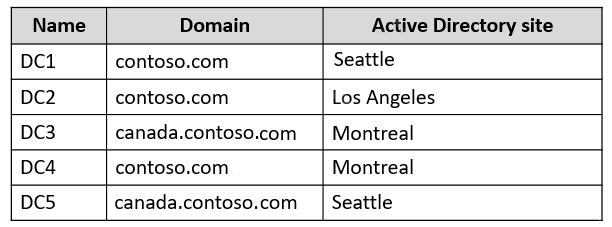
All the domain controllers are global catalog servers.
Server infrastructure
The network contains the servers shown in the following table.
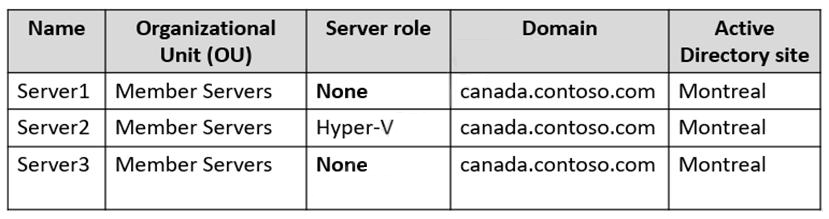
A server named Server4 runs Windows Server and is in a workgroup. Windows Firewall on Server4 uses the private profile.
Server2 hosts three virtual machines named VM1, VM2, and VM3.
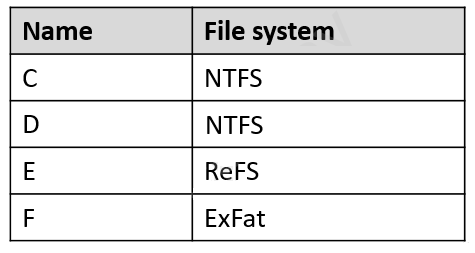
VM3 is a file server that stores data in the volumes shown in the following table.
Group Policies
The contoso.com domain has the Group Policies Objects (GPOs) shown in the following table.

Existing Identities
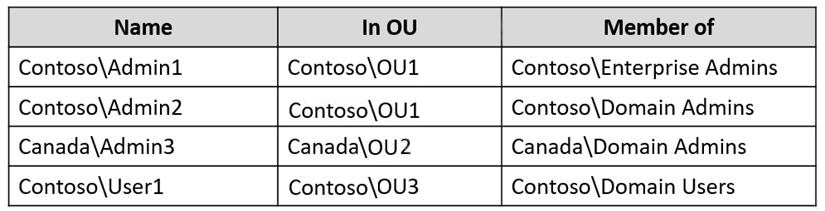
The forest contains the users shown in the following table.
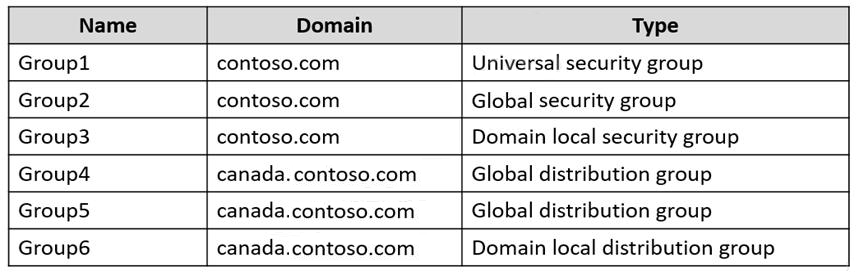
The forest contains the groups shown in the following table.
Current Problems
When an administrator signs in to the console of VM2 by using Virtual Machine Connection, and then disconnects from the session without signing out, another administrator can connect to the console session as the currently signed in user.
Requirements
Technical Requirements
Contoso identifies the following technical requirements:
- Change the replication schedule for all site links to 30 minutes.
- Promote Server1 to a domain controller in canada.contoso.com.
- Install and authorize Server3 as a DHCP server.
- Ensure that User1 can manage the membership of all the groups in Contoso\OU3.
- Ensure that you can manage Server4 from Server1 by using PowerShell remoting.
- Ensure that you can run virtual machines on VM1.
- Force users to provide credentials when they connect to VM2.
- On VM3, ensure that Data Deduplication on all volumes is possible.
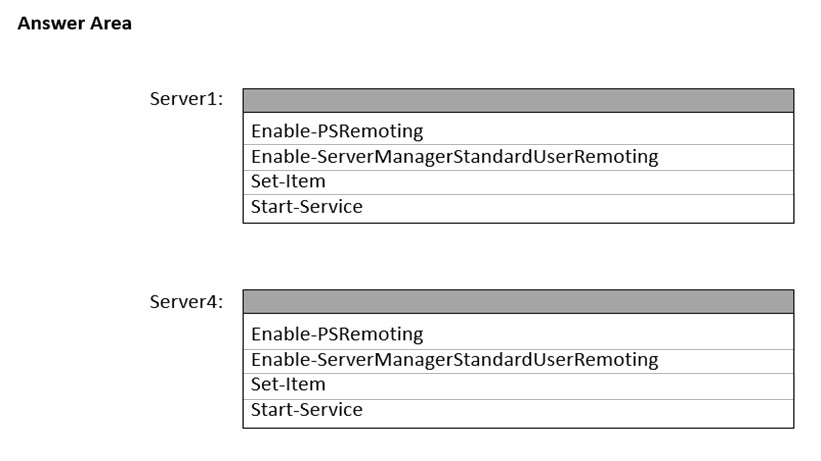
You need to meet the technical requirements for Server4.
Which cmdlets should you run on Server1 and Server4? To answer, select the appropriate options in the answer area.
NOTE: Each correct selection is worth one point.
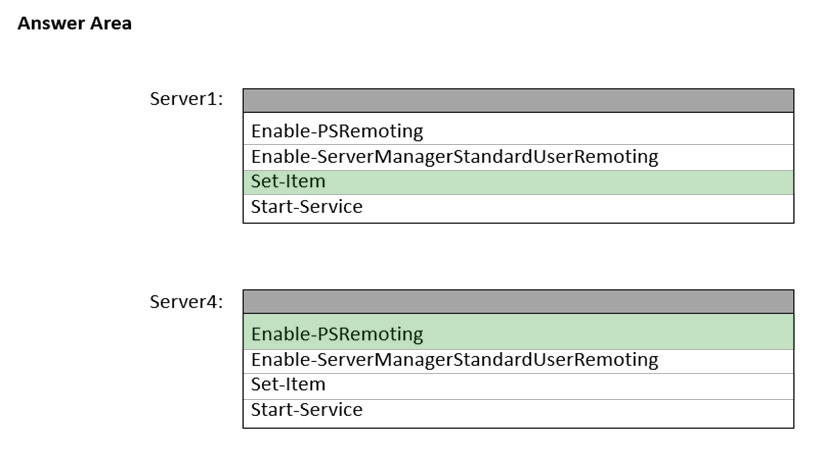
The suggested answer is correct
#Server 1:
Set-Item WSMan:\localhost\Client\TrustedHosts -Value "Ip of server4" -Force
#Server 4:
Enable-psremoting
gass
Highly Voted 2 years, 4 months ago
Server1:Set-Item
Server4:Enable-PsRemoting
upvoted 14 times
PrettyFlyWifi
5 months, 1 week ago
I think this is the other way round. Surely you would use Set-Item on the Workgroup server to "trust" the Server1 that's going to manage it remotely? Otherwise you're setting Server4 to manage Server1 and that's not the requirement? Then Enable-PSRemoting on Server1 as you can use it for firewall related settings for remote connections. Technically you do this on both servers though, it's not a good question.
upvoted 2 times
johosofat
Highly Voted 2 years ago
Technically these are all missing answers- that don't address the whole situation. both sides need to use set-item and both sides need to be enabled for psremoting. this may be to conservative answer but in the real world i would do :
Server 4 Enable-psremoting
Set-Item WSMan:\localhost\Client\TrustedHosts -Value "Ip of server1" -Force
Server 1 Enable-psremoting
Set-Item WSMan:\localhost\Client\TrustedHosts -Value "Ip of server4" -Force
It doesnt matter what order you run any of these- you will read trusted host is not needed on the domain computer- except- its connected to a non-domain server- so its... needed.
upvoted 5 times
Payday123
1 year ago
"PowerShell remoting is enabled by default on Windows Server platforms." https://learn.microsoft.com/en-us/powershell/module/microsoft.powershell.core/enable-psremoting?view=powershell-7.3 So it looks like all you need to do is to add trusted hosts on both sides?
upvoted 1 times
dump3s
Most Recent 1 month, 3 weeks ago
The source computer needs to add the destination computer in "TrustedHosts" file: Set-Item WSMan:\localhost\Client\TrustedHosts -Value "SERVER4-IP" -Concatenate -Force The destination computer needs to allow remote connection: Enter-PSRemoting PS: Remoting Powershell is enabled by default in Windows Server (regardless of whether it is in the domain or not) but, in this kind of context, shows that the remote powershell needs to be enabled. Summary: Server1 - Set-Item Server4 - Enable-PSRemoting
upvoted 1 times
sardonique
3 months, 1 week ago
if computer A (domain member) has to manage Computer B, and computer B is out of a domain, like Workgroup, Computer B has to be in private network and not public, the you run the command enable-psremoting -force; Computer A doesn't trust computer B, so you need to run Set-Item WSMan:\localhost\Client\TrustedHosts -Value "IP Computer B" -Concatenate -Force. Enjoy!
upvoted 2 times
Joedn
6 months ago
Valid 05/28/2024
upvoted 1 times
rknichols01
10 months, 3 weeks ago
this is from Co-Pilot Here are the steps to enable PowerShell remoting on each server: Open PowerShell with administrative privileges on each server. Run the following command: Enable-PSRemoting -Force. If you are in a workgroup environment, add the IP address of the remote host to the trusted hosts list in the local machine 1. On Server4, run the following command: Set-Item WSMan:\localhost\Client\TrustedHosts -Value <IP address of Server1> -Concatenate.
upvoted 1 times
Payday123
1 year ago
"PowerShell remoting is enabled by default on Windows Server platforms. " Don't need to enable it https://learn.microsoft.com/en-us/powershell/module/microsoft.powershell.core/enable-psremoting?view=powershell-7.3
upvoted 1 times
MR_Eliot
1 year, 2 months ago
Provided answer seems correct.
upvoted 1 times
syu31svc
1 year, 8 months ago
Start-Service is out of the question https://learn.microsoft.com/en-us/powershell/module/servermanager/enable-servermanagerstandarduserremoting?view=windowsserver2022-ps Provides one or more standard, non-Administrator users access to event, service, performance counter, and role and feature inventory data for a server that you are managing by using Server Manager Answer is correct
upvoted 1 times
JohnO1971
2 years, 1 month ago
https://4sysops.com/archives/enable-powershell-remoting-on-a-standalone-workgroup-computer/ Local (Workgroup) Server Set-Item Remote (Domain) Server Enable-PsRemoting
upvoted 4 times
TheUltimateHac
2 years, 6 months ago
So answers should be *Enabke-PsRemoting *Set-Item
upvoted 1 times
AnonymousJhb
2 years, 4 months ago
wrong way around. Enable-PsRemoting on the destination / remote server
upvoted 2 times
VinoTee
2 years, 6 months ago
Here's a highlighted answer from below link: https://4sysops.com/wiki/enable-powershell-remoting/#:~:text=On%20workgroup%20group%20computers%20%5E,Value%20%2210.0.2.33%22%20%2DForce
upvoted 3 times
Davoo84
2 years, 6 months ago
Trustedhost s-value
upvoted 1 times
AS007
2 years, 7 months ago
Set-Item as Server 4 is not in domain? https://4sysops.com/wiki/enable-powershell-remoting/
upvoted 4 times
AvoKikinha
2 years, 6 months ago
Agree: Enable-PSRemoting -Force -SkipNetworkProfileCheck Authentication in PowerShell remoting relies on Active Directory. By default, only computers that are domain members can connect via PowerShell remoting. In a workgroup environment, you have to add the IP addresses of the computers to the TrustedHosts list manually: Set-Item WSMan:\localhost\Client\TrustedHosts -Value "10.0.2.33" -Force
upvoted 2 times
prepper666
2 years, 5 months ago
Wrong! -SkipNetworkProfileCheck = Indicates that this cmdlet enables remoting on client versions of the Windows operating system when the computer is on a public network. This parameter enables a firewall rule for public networks that allows remote access only from computers in the same local subnet. This parameter does not affect server versions of the Windows operating system, which, by default, have a local subnet firewall rule for public networks. If the local subnet firewall rule is disabled on a server version, Enable-PSRemoting re-enables it, regardless of the value of this parameter.
upvoted 2 times