
Exam
Answer confirmed
Question
SRV1 contains a virtual machine named VM1.
You need attach c:\vhds\Disk1.vhdx to VM1. The solution must ensure that Disk1 can be expanded dynamically when VM1 runs.
To complete this task, sign in the required computer or computers.
Suggested answer
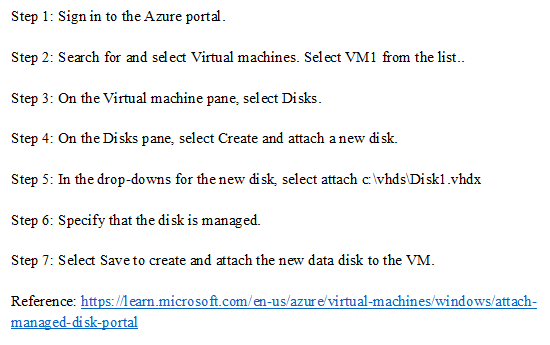
Correct answer
The suggested solution is incorrect, in this case should be used Hyper-V rather than Azure VM
sa66ath
Highly Voted 1 year, 8 months ago
upvoted 20 times
jonards
Most Recent 1 year, 9 months ago
Correct!
upvoted 2 times
sa66ath
1 year, 8 months ago
It can't be correct as it seems to be Hyper-V, not Azure
upvoted 6 times
AliRi
1 year, 7 months ago
Azure does not support .vhdx disks so Hyper-V console is correct way to do. Also in Azure disk needs to be fixed size, not dynamically expanded
upvoted 6 times