
Exam
Answer confirmed
Question
You have a server named Server1 that runs Windows Server and has the Hyper V server role installed. Server1 hosts a virtual machine named VM1.
Server1 has an NVMe storage device. The device is currently assigned to VM1 by using Discrete Device Assignment.
You need to make the device available to Server1.
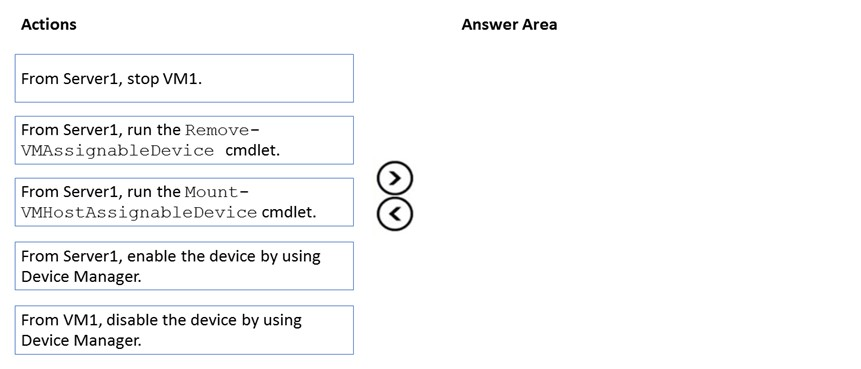
Which four actions should you perform in sequence? To answer, move the appropriate actions from the list of actions to the answer area and arrange them in the correct order.
Select and Place:
Proposed answer
Suggested answer

Correct answer
The suggested answer is correct
- Stop VM
- Remove-VmAssignableDevice
- Mount-VmHostAssignableDevice
- Enable device at host
Reference:
Deploy storage devices using DDA
nazgul250
Highly Voted 2 years, 6 months ago
Correct. https://docs.microsoft.com/en-us/windows-server/virtualization/hyper-v/deploy/deploying-graphics-devices-using-dda#removing-a-device-and-returning-it-to-the-host
upvoted 16 times
DavidThe2nd
Highly Voted 1 year, 5 months ago
Stop Remove Mount Enable
upvoted 5 times
Ksk08
Most Recent 2 weeks, 6 days ago
Correct order of actions: From Server1, stop VM1. From Server1, run the Remove-VMAssignableDevice cmdlet. From Server1, run the Mount-VMHostAssignableDevice cmdlet. From Server1, enable the device by using Device Manager.
upvoted 1 times
afridi43
1 year, 2 months ago
1. From Server1, Stop VM1. (You need to stop VM1 to release the NVMe storage device from the virtual machine.) 2. From Server1, run the Remove-VMAssignableDevice cmdlet. (This step detaches the device from the virtual machine.) 3. From Server1, run the Mount-VMHostAssignableDevice cmdlet. (Now that the device is no longer assigned to VM1, This makes the NVMe storage device available to Server1.) 4. From Server1, enable the device by using Device Manager. (Once the device is attached to Server1, you should enable it in Device Manager to make it usable by the host server.)
upvoted 2 times
syu31svc
1 year, 8 months ago
From the links given by nazgul250, Jawad1462 and alexandrasexy If you want to return he device back to its original state, you will need to stop the VM and issue the following: Copy #Remove the device from the VM Remove-VMAssignableDevice -LocationPath $locationPath -VMName VMName #Mount the device back in the host Mount-VMHostAssignableDevice -LocationPath $locationPath You can then re-enable the device in device manager and the host operating system will be able to interact with the device again. Answer is correct
upvoted 4 times
Jawad1462
2 years, 1 month ago
Answer is Correct https://docs.microsoft.com/en-us/windows-server/virtualization/hyper-v/deploy/deploying-graphics-devices-using-dda#removing-a-device-and-returning-it-to-the-host
upvoted 3 times
alexandrasexy
2 years, 4 months ago
The answer is Correct. https://docs.microsoft.com/en-us/windows-server/virtualization/hyper-v/deploy/deploying-graphics-devices-using-dda#removing-a-device-and-returning-it-to-the-host
upvoted 4 times