
- 4 перегляди
Overview
Contoso, Ltd. is a company that has a main office in Seattle and two branch offices in Los Angeles and Montreal.
Existing Environment
AD DS Environment
The network contains an on premises Active Directory Domain Services (AD DS) forest named contoso.com.
The forest contains two domains named contoso.com and canada.contoso.com.
The forest contains the domain controllers shown in the following table.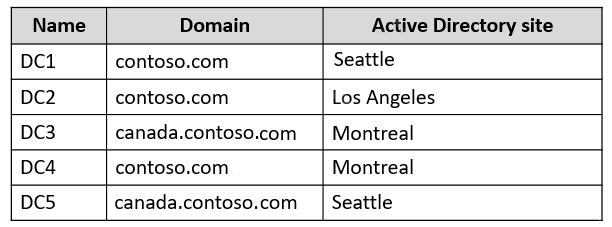
All the domain controllers are global catalog servers.
Server infrastructure
The network contains the servers shown in the following table.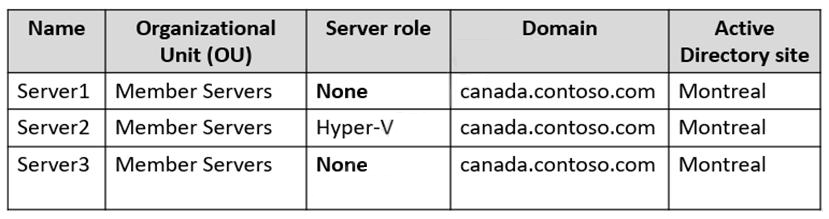
A server named Server4 runs Windows Server and is in a workgroup. Windows Firewall on Server4 uses the private profile.
Server2 hosts three virtual machines named VM1, VM2, and VM3.
VM3 is a file server that stores data in the volumes shown in the following table.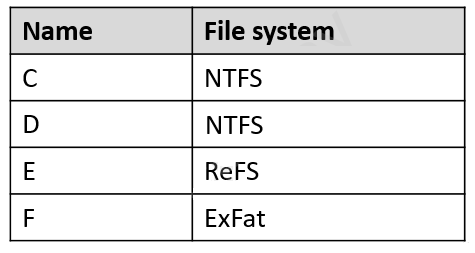
Group Policies
The contoso.com domain has the Group Policies Objects (GPOs) shown in the following table.
Existing Identities
The forest contains the users shown in the following table.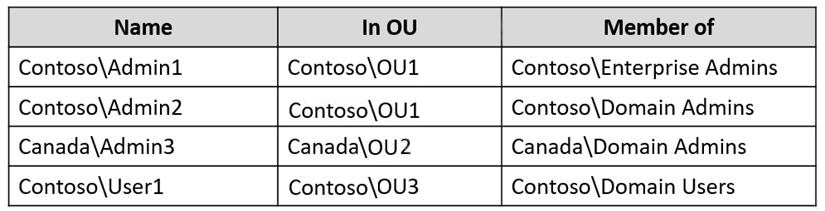
The forest contains the groups shown in the following table.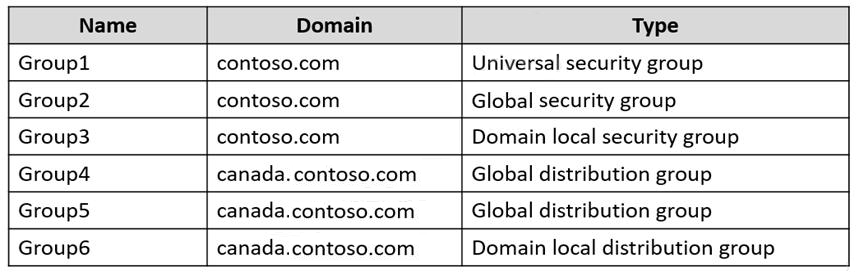
Current Problems
When an administrator signs in to the console of VM2 by using Virtual Machine Connection, and then disconnects from the session without signing out, another administrator can connect to the console session as the currently signed in user.
Requirements
Technical Requirements
Contoso identifies the following technical requirements:
-Change the replication schedule for all site links to 30 minutes.
-Promote Server1 to a domain controller in canada.contoso.com.
-Install and authorize Server3 as a DHCP server.
-Ensure that User1 can manage the membership of all the groups in Contoso\OU3.
-Ensure that you can manage Server4 from Server1 by using PowerShell remoting.
-Ensure that you can run virtual machines on VM1.
-Force users to provide credentials when they connect to VM2.
-On VM3, ensure that Data Deduplication on all volumes is possible.
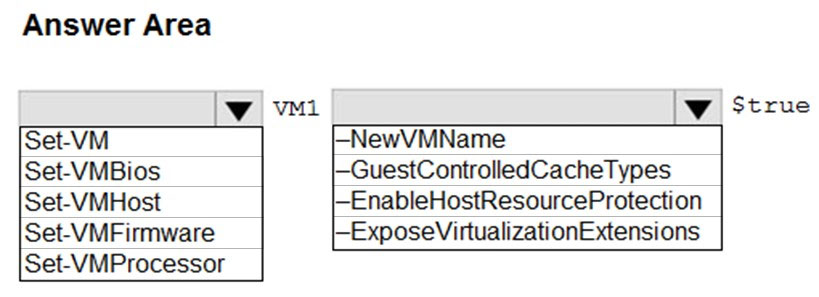
You need to meet the technical requirements for VM1.
Which cmdlet should you run first? To answer, select the appropriate options in the answer area.
NOTE: Each correct selection is worth one point.
Hot Area:
Suggested answer is correct
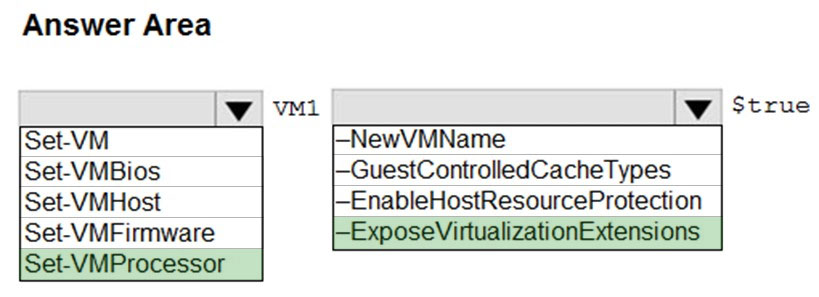
According to technical requirements, on VM1 should be possible to run virtual machines, that means that VM1 should support nested virtualization
Set-VMProcessor -VMName <VMName> -ExposeVirtualizationExtensions $truehttps://learn.microsoft.com/en-us/virtualization/hyper-v-on-windows/user-guide/enable-nested-virtualization
NazerRazer
1 year ago
the cmdlet is not complete. you need the -VMName in front of VM1 Set-VMProcessor -VMName VM1 -ExposeVirtualizationExtensions $true
upvoted 2 times
MR_Eliot
1 year, 2 months ago
Correct
upvoted 2 times
syu31svc
1 year, 8 months ago
Answer is correct and link supports it
upvoted 1 times
Robrol
1 year, 10 months ago
The given answer is correct. https://learn.microsoft.com/en-us/virtualization/hyper-v-on-windows/user-guide/nested-virtualization At the Configure Nested Virtualization part: Set-VMProcessor -VMName <VMName> -ExposeVirtualizationExtensions $true
upvoted 4 time